
Blog
Minecraft (Nintendo 3DS) Fix

This guide will explain how to fix the error that occurs when launching Minecraft for 3DS
Your console must be connected to a Wifi network before continuing
- Open the System Settings application from the 3DS home screen
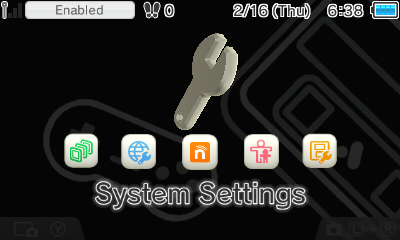

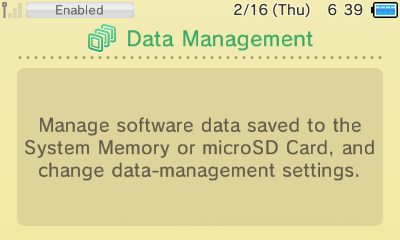
2. Select “Data Management”
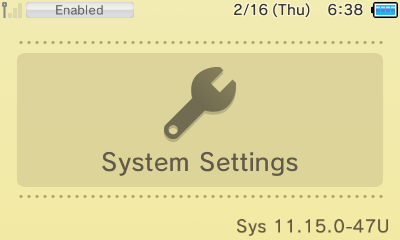

3. Select the Nintendo 3DS icon as shown

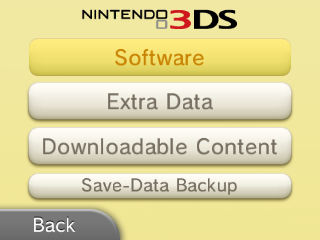
4. Select “Software” option from the list

5. The list of installed games will load. Scroll to the right until you find the game
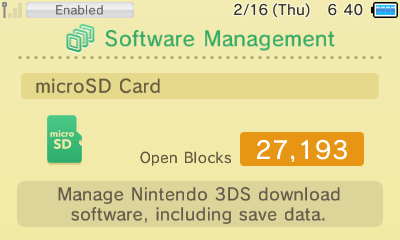

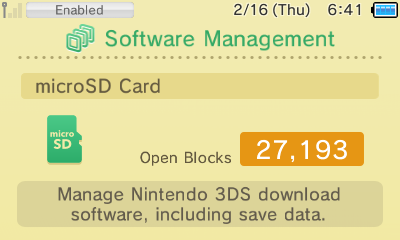
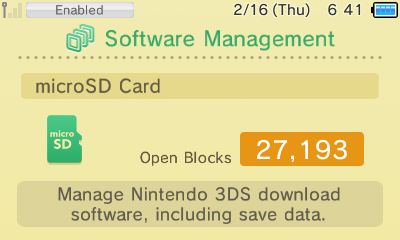
6. Select the game and tap “Delete”

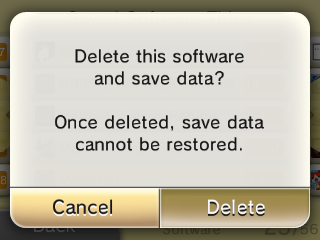
7. Confirm the action by tapping “Delete” again:
8. Go back to the 3DS home screen and open the “FBI” app


9. Select “Remote Install” from the options


10. Select “Scan QR Code” from the options

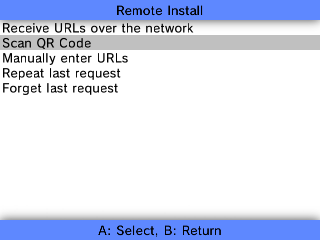
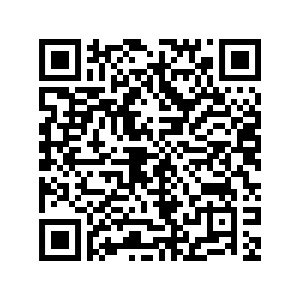
11. Using the 3DS camera, scan the QR code found below
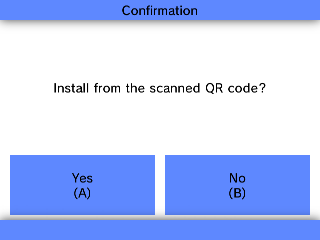
12. Accept the prompt once the code has been scanned successfully

Note: Due to the slow Wifi chip in the 3DS, this may take 1+ hours to download. It is recommended to keep the system plugged into a power adapter during the download.
13. Once the download is complete, press the Home Button and the fixed Minecraft game will appear. Unwrap it and begin playing


